Skill Macro and Animation Cancel in Aion 2
How to build the in-game macro, order your skills, and use it alongside the basic attack to trigger Animation Cancel.
4 minUpdated Oct 2026
Original video on Scaryel's channel
01Why use a macro
The macro looks like a minor detail, but it enables one of the most important functions in the game: Animation Cancel.
It runs actions in sequence and, combined with the basic attack, speeds up skill usage. It's a built-in game feature: no external tool needed.
02How to set up the macro in-game
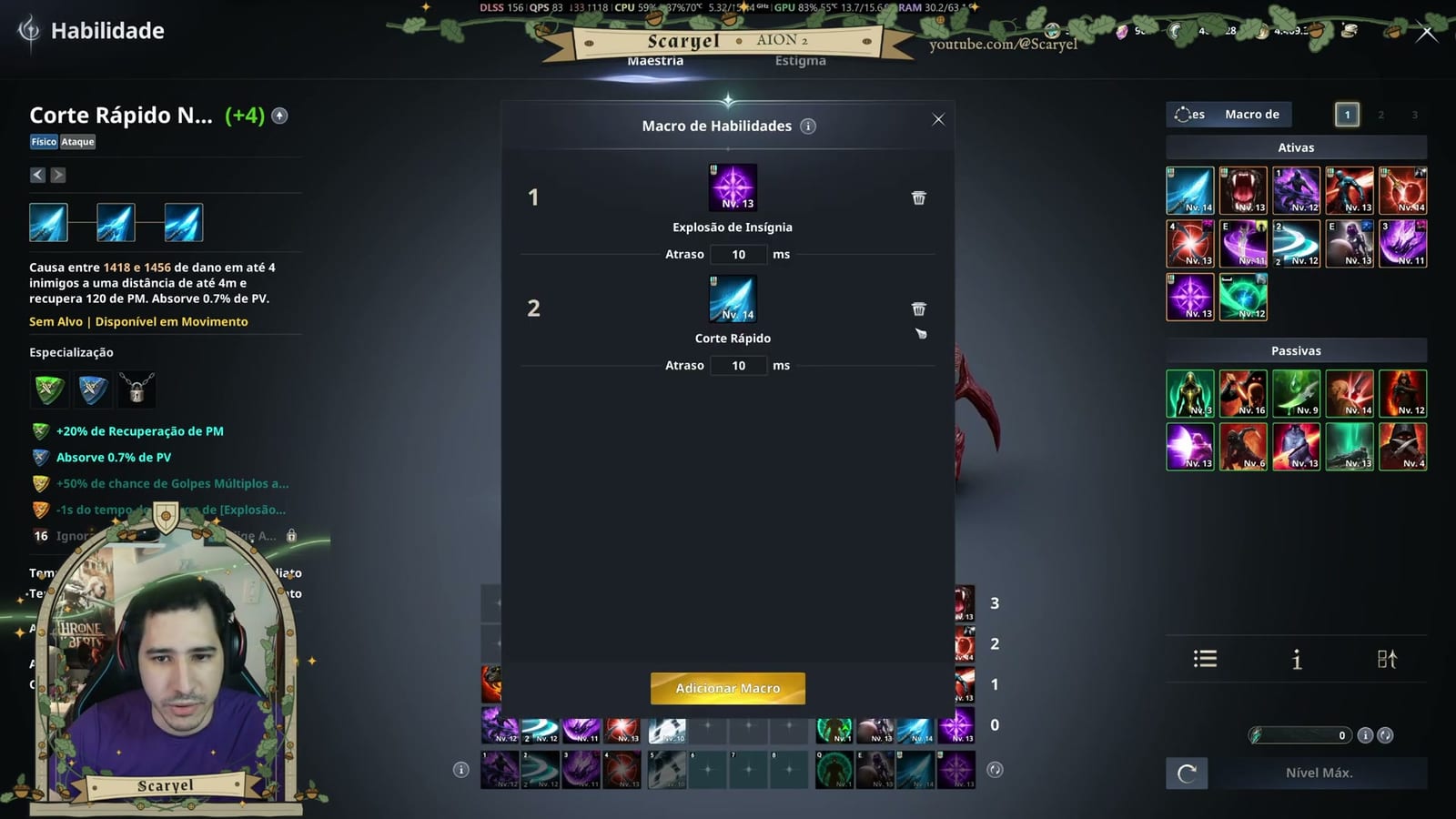
In the skills menu there's a Skill Macro option. There you add several skills from your bar.
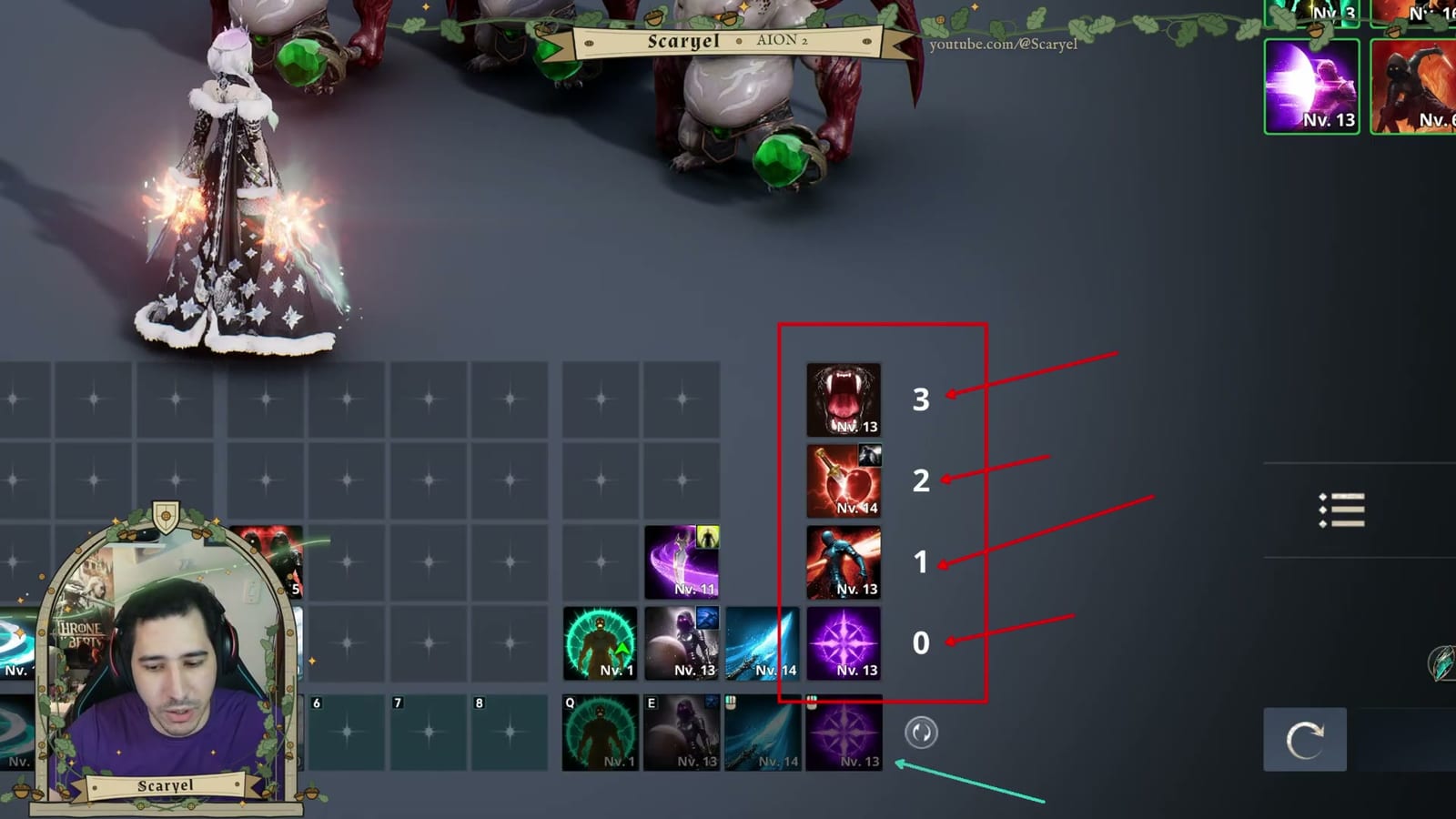
A bar slot can hold several encapsulated skills, but the macro shows only one of them. When you add the slot, the macro uses the whole set, with an interval of about 10 ms between them.
On the example assassin, the macro has a single skill added, but it fires four.
- Open the skills menu and click Skill Macro.
- Add the skills from your bar that should go into the macro.
- Remember that each slot you add runs the entire set encapsulated in it.
03Skill priority order
Macro skills are used from the bottom up. The lower a skill sits in the list, the higher its priority when it's available.
The lowest-cost, instant-cast skill should come last in the usage order. If it were placed first, it would be prioritized whenever available and get in the way of the others.
This way, a single button triggers four skills in sequence. You don't need to include every skill on the bar.
- Place the highest-priority skills lower in the list.
- Leave the instant-cast skill to be used only after the others.
- If your class relies on more skills, add 1, 2, or 3 sets to the macro.
04Setting the macro hotkey
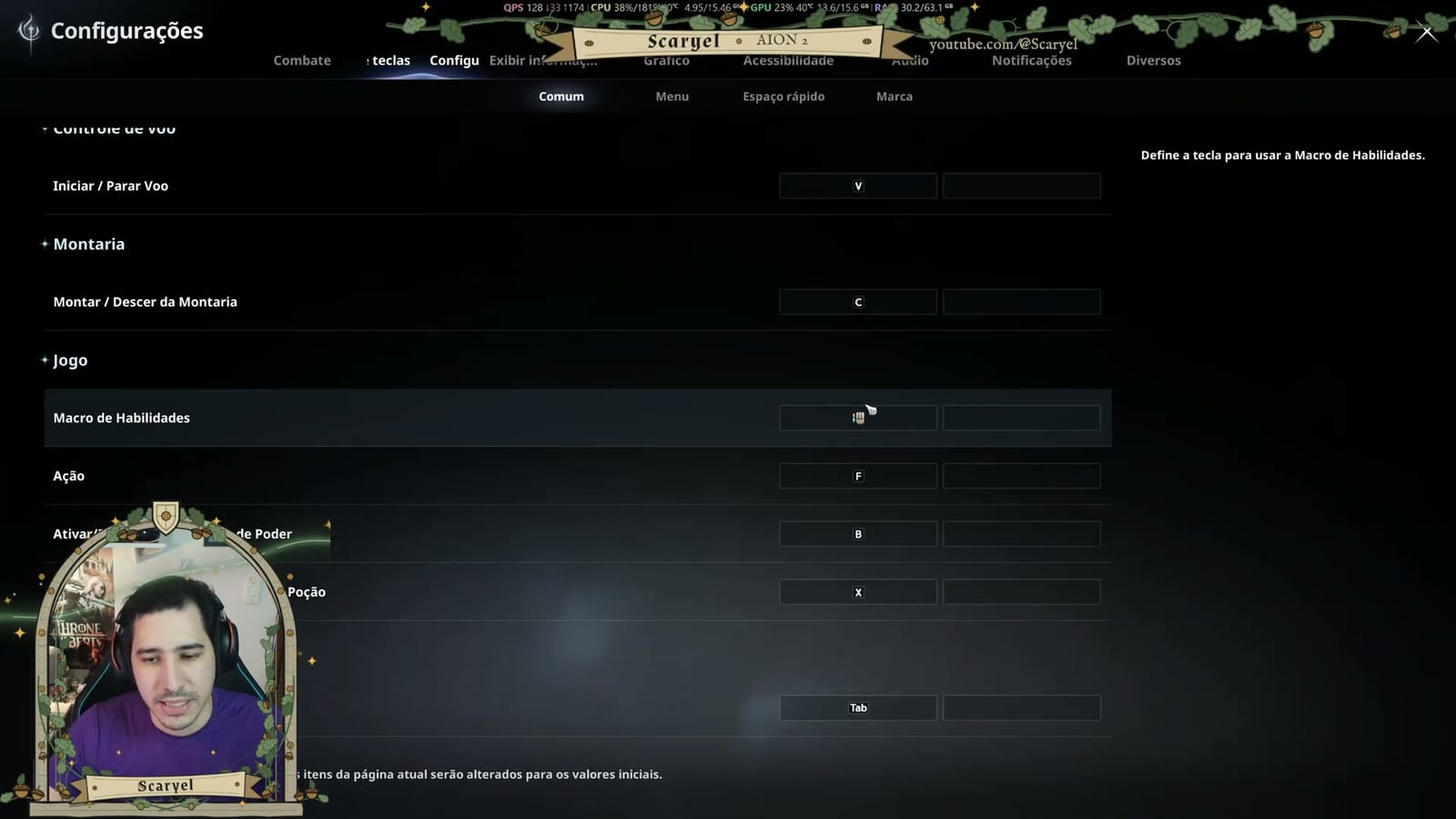
The macro has its own button, set in the keybind settings. In the example, it's on the mouse side button.
That way, just holding the left button (basic attack) makes the character cycle through several skills.
- Open Settings and go to keybind configuration.
- Scroll down to the skill section and find Skill Macro.
- Assign a key or mouse button.
05Animation Cancel with the basic attack
The macro works best alongside the basic attack. Hold the left mouse button and the macro button at the same time.
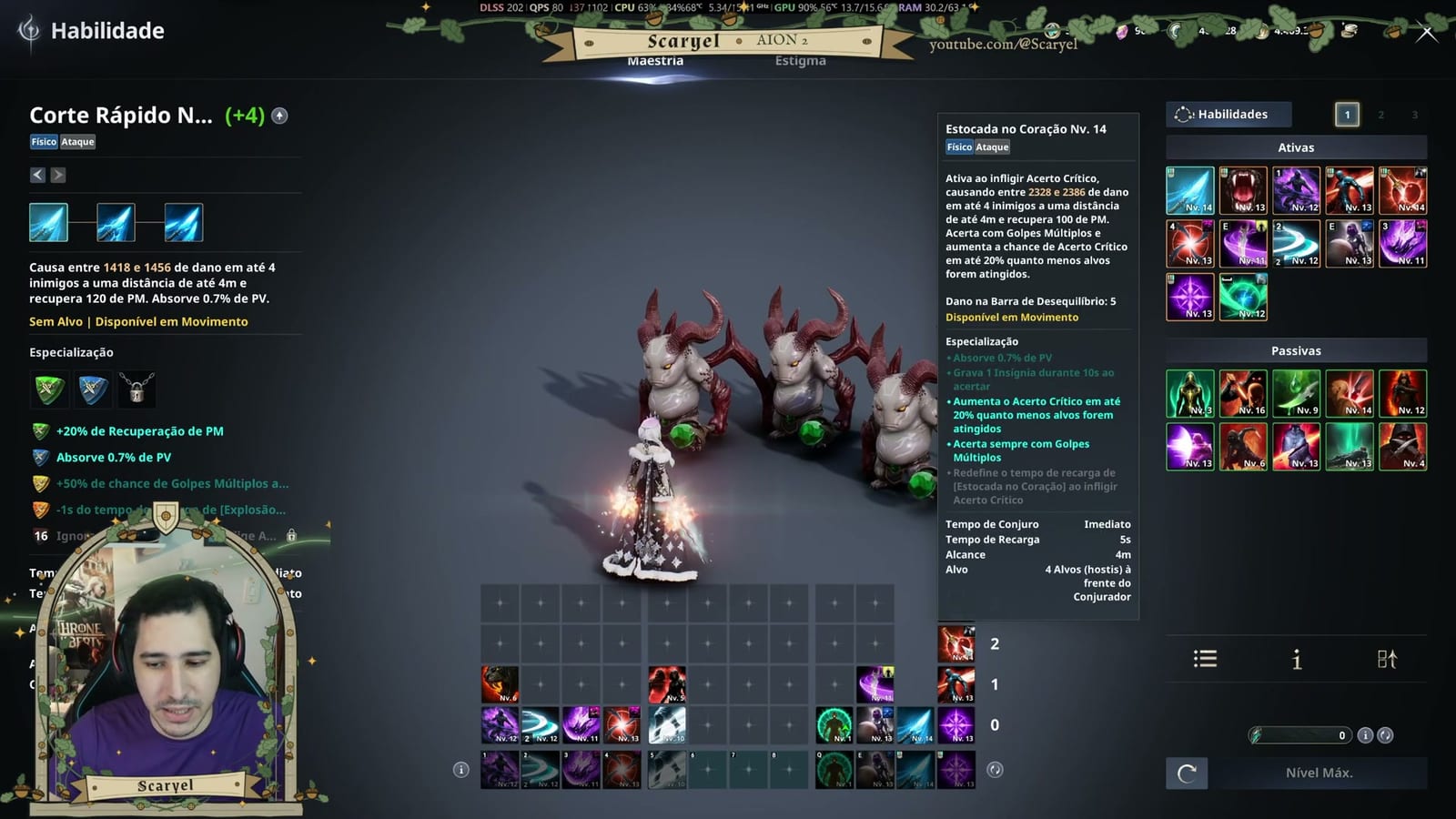
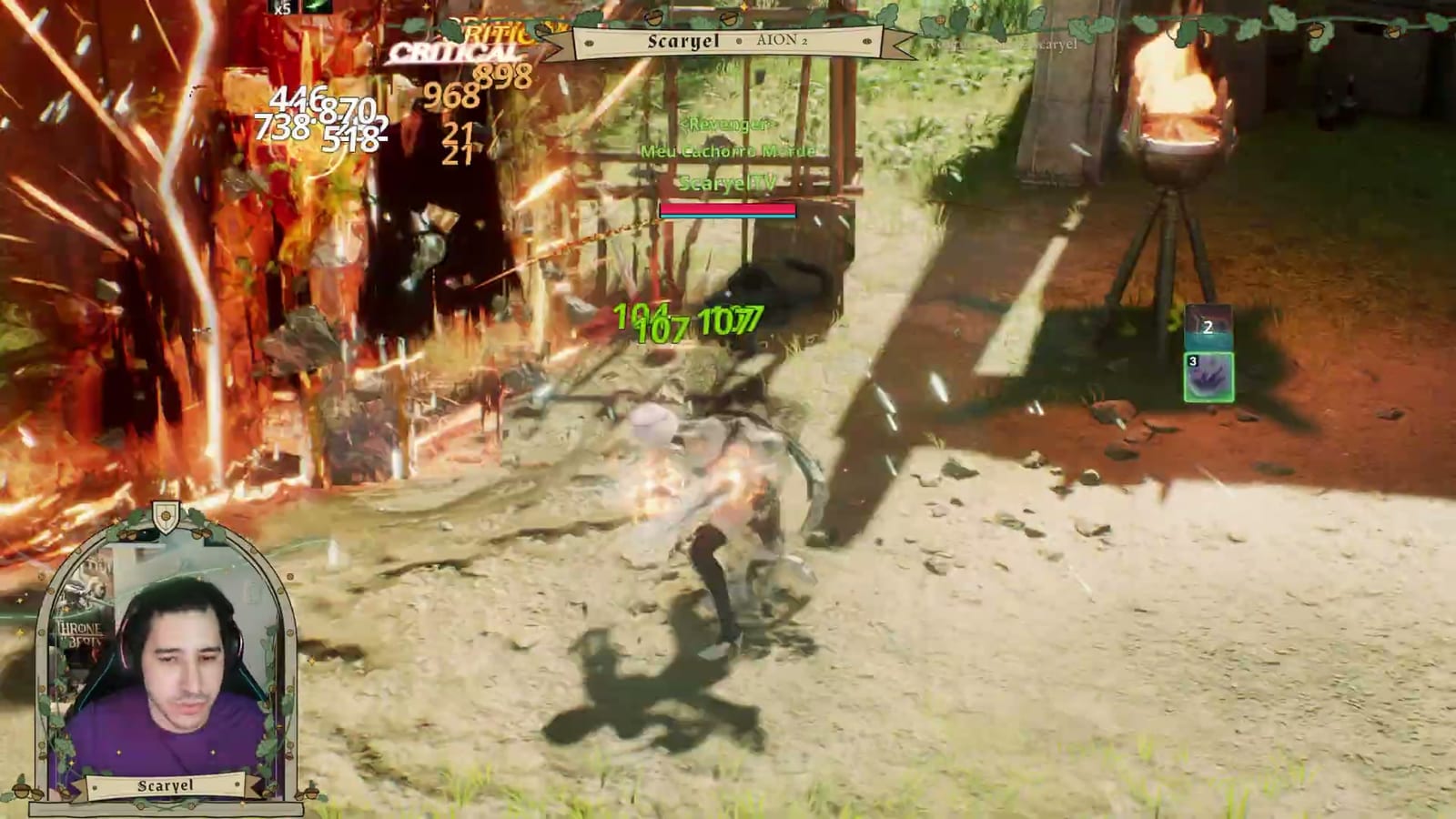
With Animation Cancel active, black shadows appear at the character's feet. Each macro skill takes advantage of the basic attack's cancel, and the character hits much faster.
Without the basic attack, skills fire one after another, but much slower.
- Hold the left mouse button (basic attack).
- At the same time, hold the macro button.
- Check for black shadows at the character's feet to confirm Animation Cancel.
06Results with buffs
With all damage buffs active, the macro combo becomes very fast and deals a lot of burst damage.
According to the creator, any class that sets up the macro to Animation Cancel with the basic attack should reach a similar result.
07Other classes' macros and the ideal level
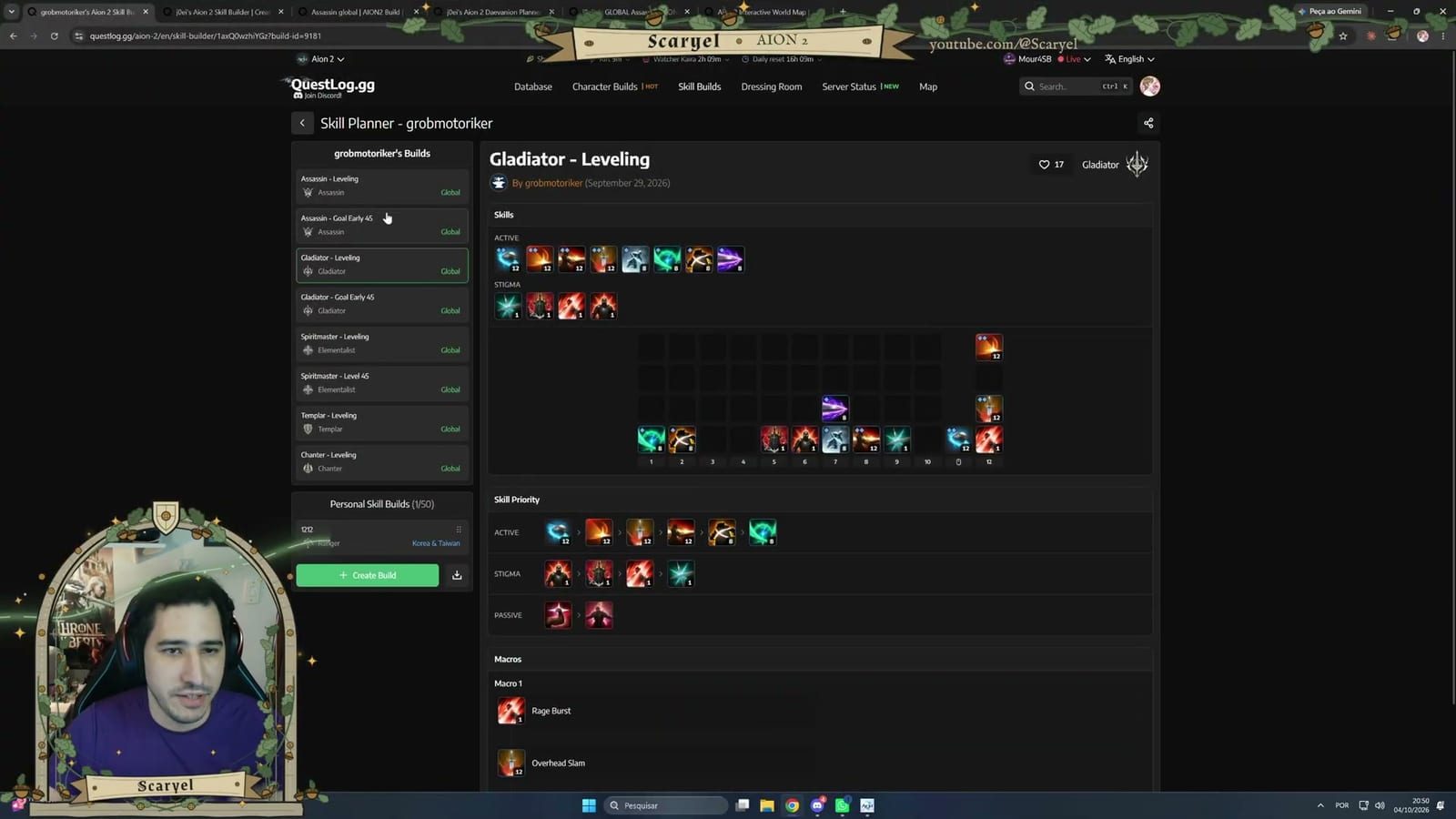
Questlog collects macros registered by content creators, by class. There are examples for Gladiator, Spirit Master, and Ranger, all based on using the basic attack together with the macro.
You can improve it even further with an external tool, but the in-game macro already covers the essentials. Set it up from level 16, when all skills are already available.
- Check Questlog for other players' macros for your class as a reference.
- Set up your own macro from level 16.